Admin Panel Guide
The Admin Panel is where you configure the application, manage your subscription, and control which products offer the virtual try-on experience.
Catalog Management
Use the Catalog tab to manage which products in your store have the Virtual Try-On feature enabled.
- Navigate to the Catalog tab.
- You will see a list of your products. Use the search bar to find specific items.
- To enable Try-On for a product, toggle the switch to On.
- To disable Try-On, toggle the switch to Off.
Dashboard
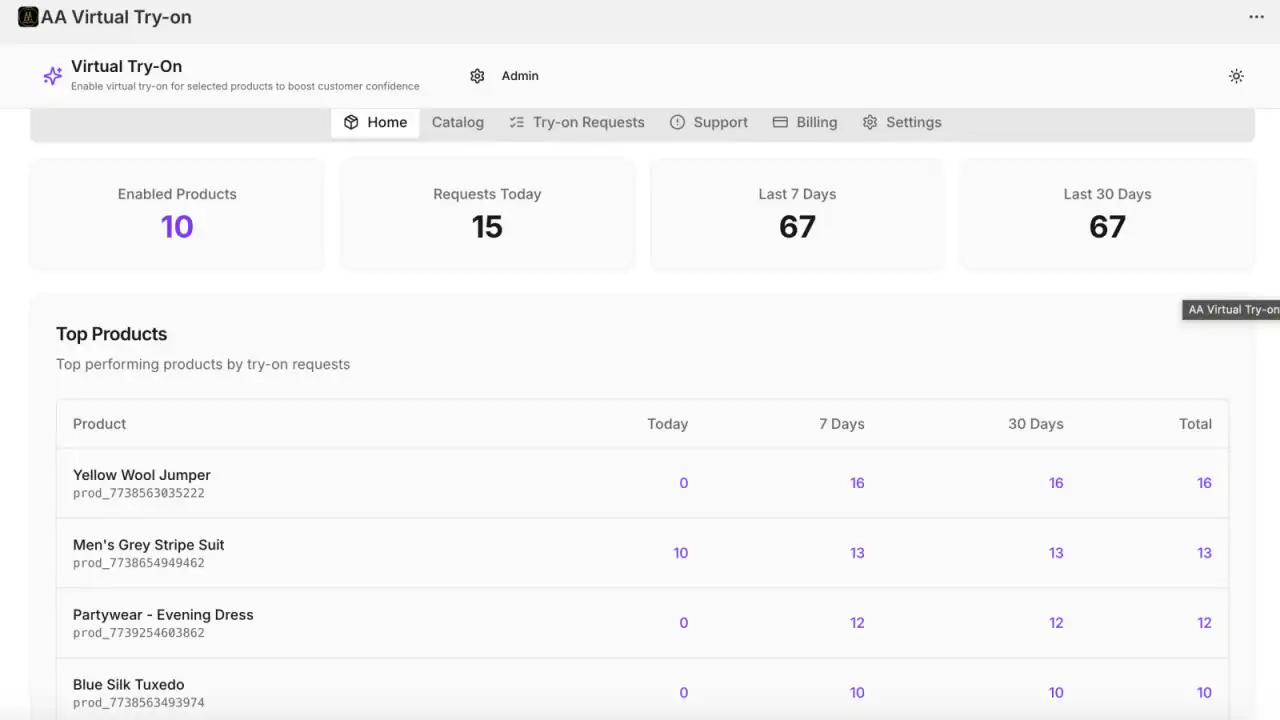
The Dashboard provides an overview of your app usage and performance. Here you can see improved metrics and quick links to common tasks.
Settings Configuration
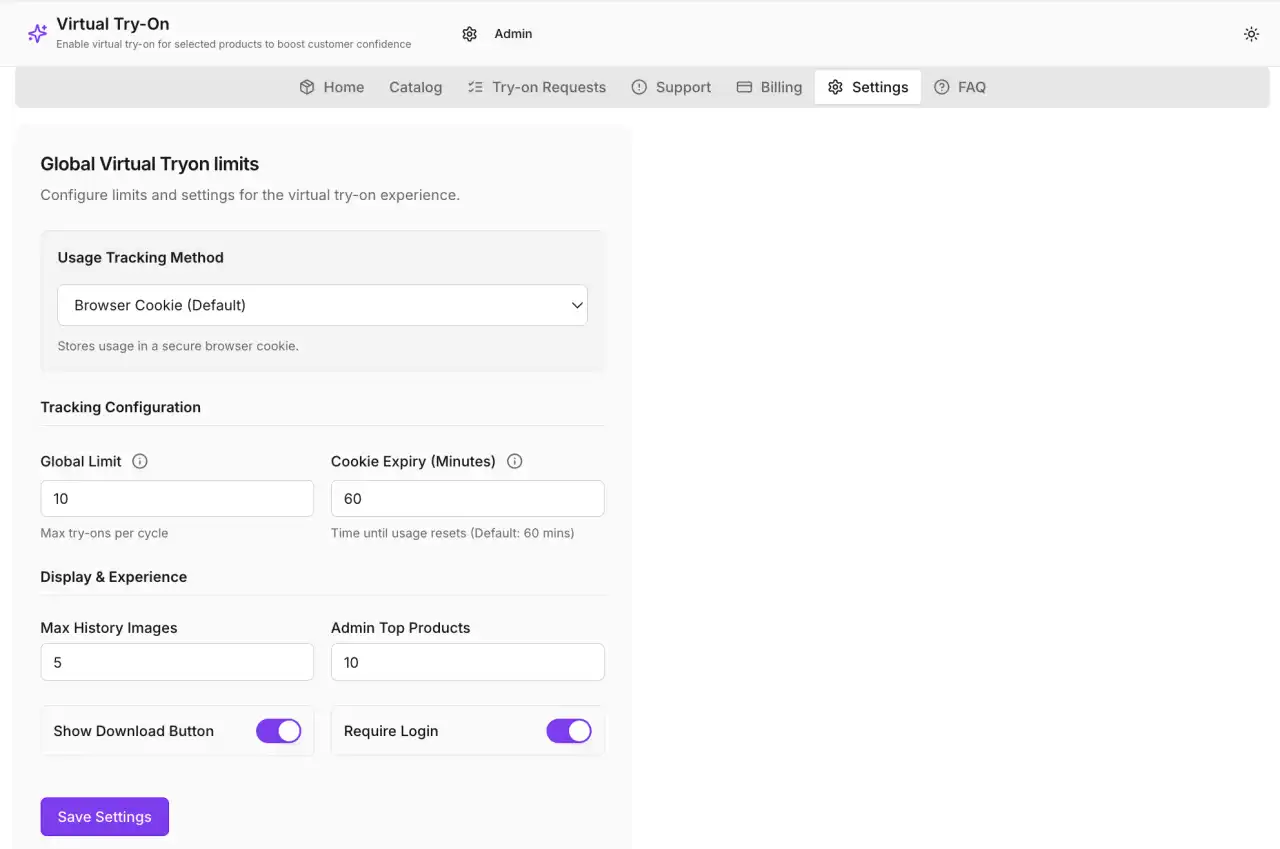
The Settings tab allows you to customize the behavior of the Virtual Try-On widget.
General Settings
- Global Usage Limit: Set the maximum number of try-on requests allowed per user session.
- Image Resolution: Choose the quality of the generated try-on images (e.g., Standard, High).
- Show Download Button: Enable this to allow customers to download their try-on results.
- Require Login: If checked, only logged-in customers can use the try-on feature.
- History Limit: Max number of past try-ons to save in the user's local history.
Usage Tracking & Security
Configure how the app tracks user sessions to prevent abuse and manage limits.
- Tracking Mode:
- Cookie: Uses browser cookies to track usage (simplest, no login required).
- Database: Tracks usage server-side (more secure).
- Metafield: Stores usage data in customer metafields (requires login).
- Cookie Expiry (Minutes): If using Cookie mode, define how long the usage session lasts before resetting (default is 60 minutes).
Model Uploads
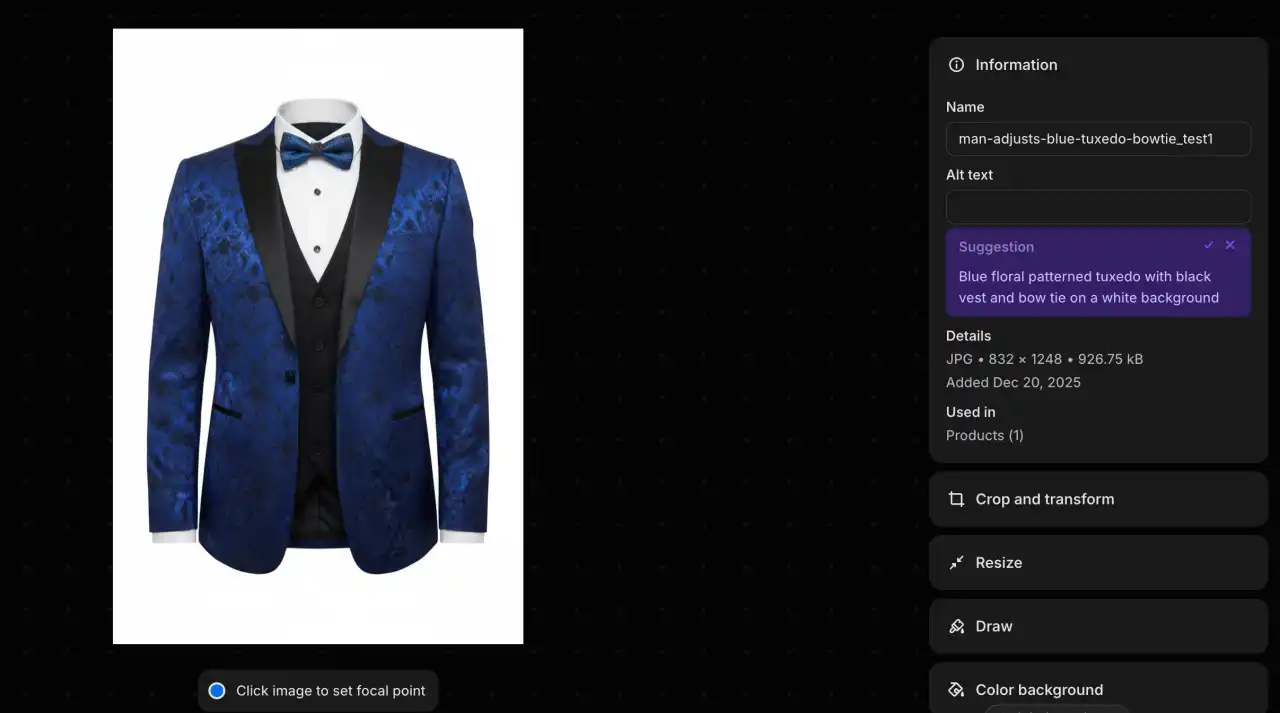
If your products require specific model images for the try-on synthesis, you can upload them here.
Billing & Subscriptions
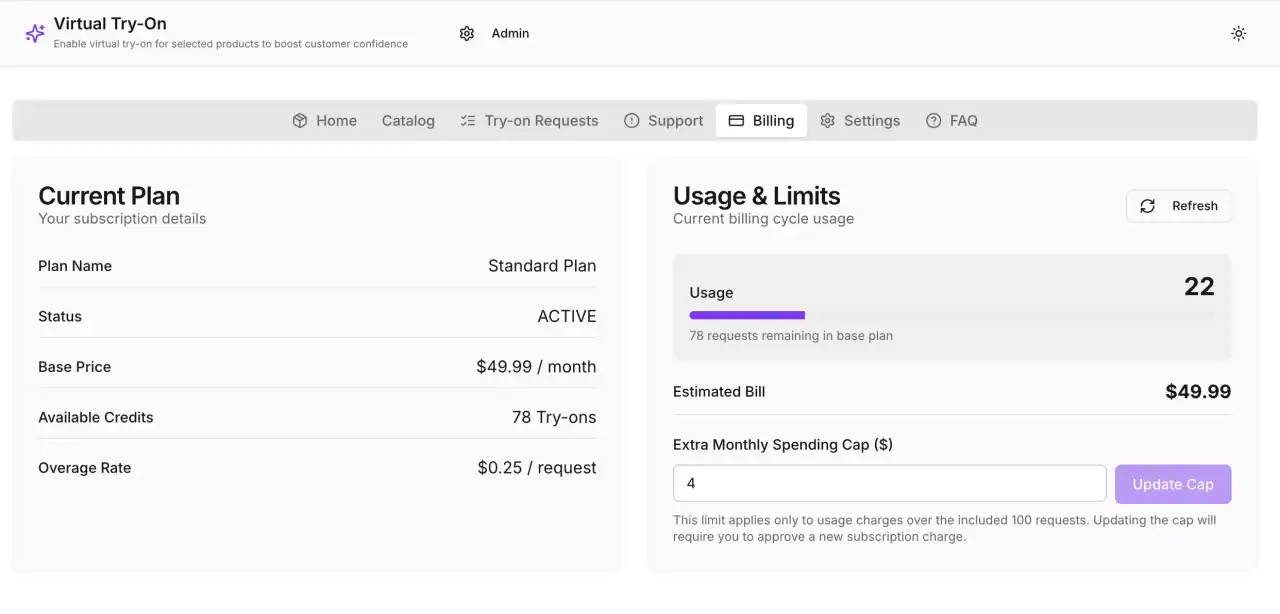
Manage your app subscription plan in the Billing tab.
- View your current plan and usage against your monthly cap.
- Upgrade or downgrade your subscription plan.
- View transaction history for try-on requests.
Support
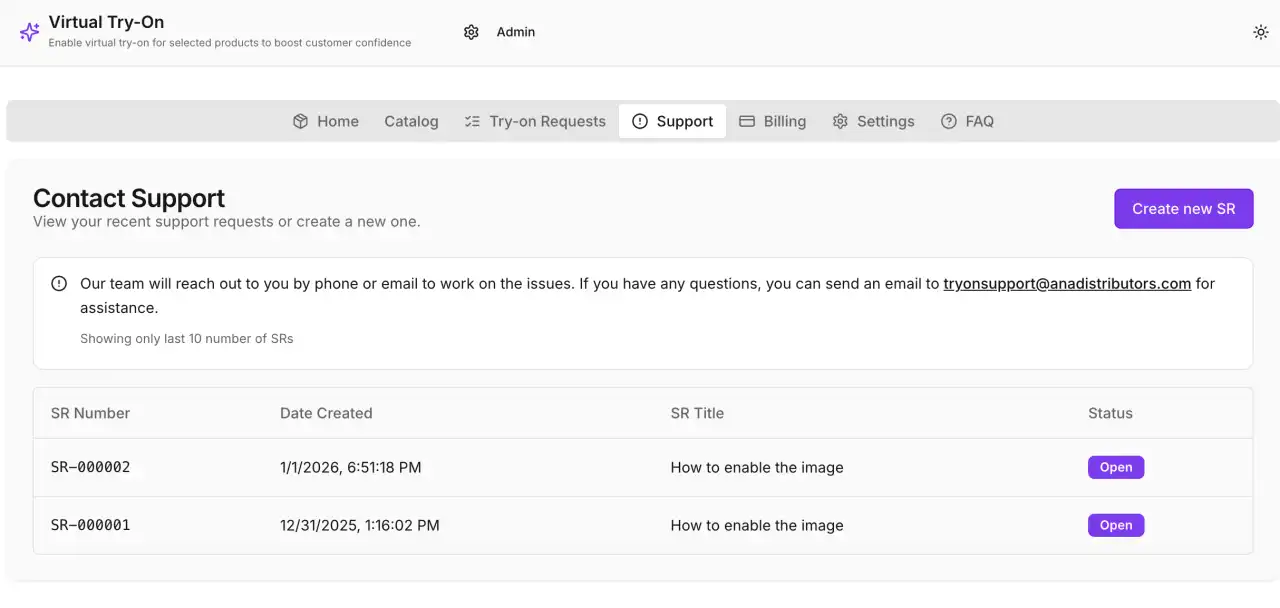
Need help? Use the Support form to send a message directly to our team.