Installation Guide
Requirement: WooCommerce must be installed and active before you activate this plugin. Activating without WooCommerce will display an error and the plugin will not load.
Step 1: Install the Plugin
The A&A Suit Customization plugin is distributed as a .zip file. Install it directly from your WordPress Admin:
- Log in to your WordPress Admin (
yourdomain.com/wp-admin). - Go to Plugins → Add New.
- Click Upload Plugin at the top of the page.
- Click Choose File and select the
WordpressCustomSuit-x.x.x.zipfile you received. - Click Install Now.
- Once installed, click Activate Plugin.
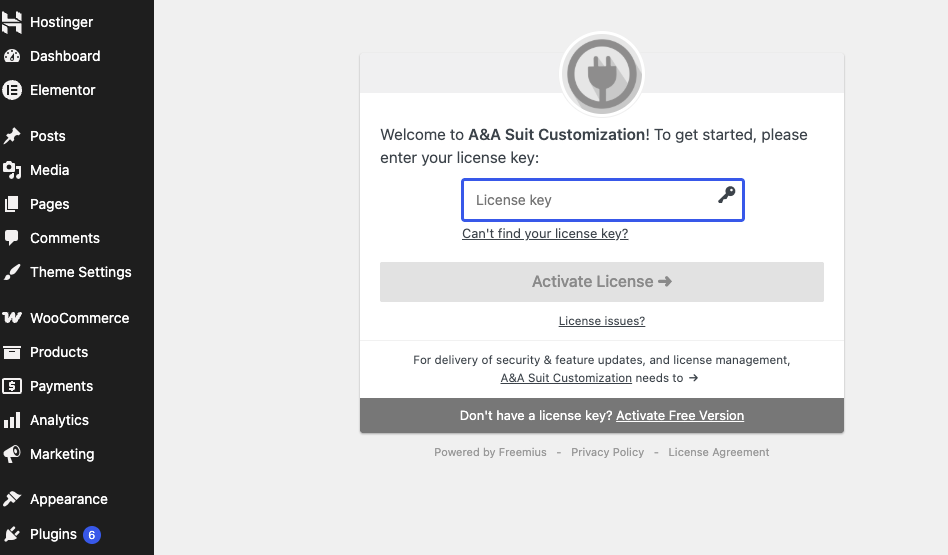
Note: After activation, your store is automatically registered with the A&A supplier platform as a free-tier account. No manual API setup is needed.
Step 2: Activate Your License (Paid Plan)
The plugin starts in Free Plan mode, which allows up to 10 drop ship products. To unlock the suit customizer and unlimited products, activate your paid license:
Option A — From the Dashboard banner (quickest)
- Go to WooCommerce → A&A Suits in your WordPress Admin.
- On the Dashboard tab, click the amber "Activate your license" banner.
- Paste your license key (starts with
sk_) into the field. - Click Activate. The page reloads and your plan upgrades automatically.
Option B — From Settings
- Go to WooCommerce → A&A Suits → Settings.
- Paste your license key into the License Key field and click Save Settings.
- Click Connect to Supplier. The page reloads and your plan upgrades automatically.
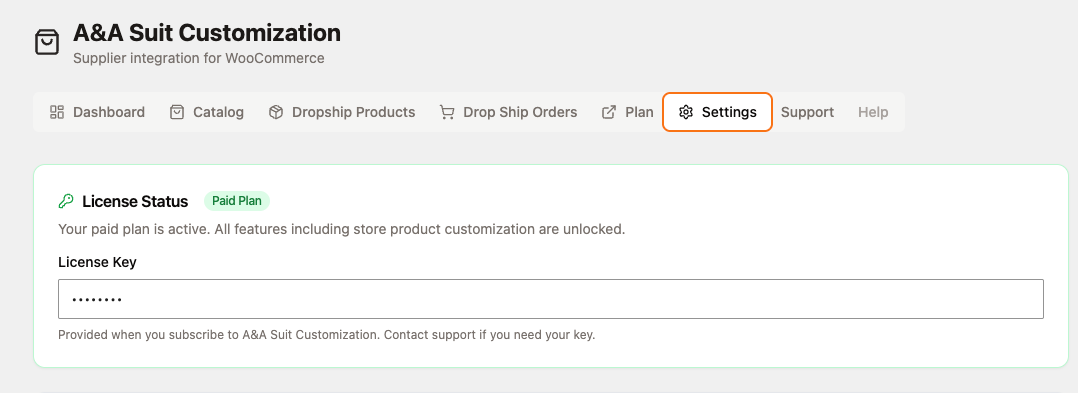
Where to find your license key: Purchase a license at anadistributors.com/aa-suit-customization. Your license key will be emailed to you after purchase and is also available in your account on that page. Keys start with
sk_.
Step 3: Set Your Portal Password
To view and pay for orders on the A&A supplier portal, set a portal password in Settings:
- Go to WooCommerce → A&A Suits → Settings.
- In the Supplier Portal Access section, enter your portal email and a password.
- Click Set Portal Password.
- Your login to the portal at csots.anadistributors.com uses your store domain as the username and the password you just set.
Troubleshooting Installation
- "Sorry, you are not allowed to access this page" — WooCommerce is not installed or not active. Install and activate WooCommerce first, then re-activate this plugin.
- Plugin activation failed — Check that your server runs PHP 8.0 or later. Go to Tools → Site Health in WordPress to verify your PHP version.
- License not activating — Make sure you are pasting the full key starting with
sk_. If the key was already used on another domain, contact cssupport@anadistributors.com to have it reset. - Connect to Supplier button is greyed out — The license key field must contain a valid
sk_key and you must click Save Settings before the button becomes active.
Requirements
- WordPress 6.0 or later
- WooCommerce 7.0 or later (must be active before this plugin)
- PHP 8.0 or later